
Microsoft Word isn't just for writing; it's also a surprisingly powerful translation tool. Right from the Review tab, you can translate small chunks of text or even convert an entire document into a different language. This is all handled by the built-in Microsoft Translator service, available in both the desktop app and the online version of Word.
Your Quick Guide to Translating in Word
Let's face it, we often need a quick translation. Maybe you've received an email in another language, need to send a report to an international colleague, or just want to check a single phrase. Word's integrated tools are perfect for these moments. You can get a translation without ever leaving your document—no more tedious copy-pasting into a separate website.
This feature has come a long way. Back in the early 2010s, it was pretty basic. But when Microsoft integrated neural network technology around 2016, the fluency for major languages shot up by 10-20%. It went from a novelty to a genuinely useful tool for most everyday needs.
The Two Main Translation Methods
Word gives you two distinct ways to translate, each with its own purpose.
Translating Selected Text: This is your go-to for small jobs. Need to know what a single sentence, a paragraph, or a quote means? Just highlight it. A sidebar pops up showing your original text and the translation, which you can then insert with a click. It’s fast, simple, and doesn't mess with the rest of your document.
Translating a Full Document: This option is for when you need the whole file converted. It creates a completely new, translated copy of your document. The great thing is that it tries its best to keep your original formatting—headings, tables, and paragraphs—intact.
My Personal Tip: Use "Translate Selection" for quick spot-checks and understanding snippets. It keeps you in the flow. For converting a whole draft for review, "Translate Document" is the better choice, but always remember to proofread the output.
The process is incredibly intuitive, especially in Word Online where the Translator pane appears neatly on the right, as you can see here.

You just select your source and target languages, and the translation appears instantly. That seamless workflow is a huge productivity booster.
Of course, it has its limits. While it's great for reports and articles, complex layouts in long-form content like a novel can get tricky. If you're struggling to keep your formatting perfect, especially for professional publishing, it’s worth looking into dedicated top tools for translation-friendly formatting.
Microsoft Word Translation Methods at a Glance
To help you decide which method to use, here's a quick side-by-side comparison of the two main options built into Word.
| Feature | Selected Text Translation | Full Document Translation |
|---|---|---|
| Best For | Quick, on-the-fly lookups of phrases, sentences, or paragraphs. | Converting entire drafts, reports, or articles for review. |
| How It Works | Opens a sidebar with the translation; you can insert it into your current document. | Creates a new, separate document file with the translated content. |
| Formatting | Doesn't affect document layout; inserts plain or formatted text where you choose. | Attempts to preserve the original formatting (headings, tables, etc.). |
| Speed | Instantaneous. | Can take a few moments, depending on the document's length. |
| Limitation | Only translates small, highlighted portions of text at a time. | Formatting can sometimes be imperfect with complex layouts. |
Ultimately, both methods offer a fantastic starting point for translation directly within the software you already know and use. They are designed for convenience and speed, making them ideal for everyday business and personal tasks.
Translating Specific Text Selections
Sometimes, you don't need the whole document translated. You might just be dealing with a single paragraph in a research paper, a quote from a foreign source, or a snippet from an email sent by an international colleague. For these quick, focused jobs, Word’s built-in text selection translator is your best friend. It’s a fast, clean way to get the gist of something without ever leaving your document.
The process itself couldn't be simpler. You start by highlighting the exact text you want to translate—it can be a single word or several paragraphs. This tells Word precisely what to work on, leaving the rest of your document untouched. It's so much more efficient than the old copy-and-paste routine into a separate translation website.
Launching and Using the Translator Pane
With your text highlighted, just head up to the Review tab on the Word ribbon. Look for the Translate button, give it a click, and choose Translate Selection. This command opens up the Translator pane on the right side of your screen, which is basically your mission control for the translation.
The pane is pretty smart. Word automatically figures out the source language of your selected text, which is a fantastic time-saver. All you really have to do is pick your target language from the dropdown list. Once you do, the translation pops up almost instantly in the box below.
From here, you’ve got options. You can either read the translation directly from the pane or, if you need it in your document, just hit the blue Insert button. This action swaps out your original highlighted text with the new translation.
A Pro Tip for Efficiency: See that little icon with two arrows between the source and target language fields? Clicking that "Swap languages" button instantly reverses your selection. This is incredibly handy when you're working back and forth between two languages and need to quickly check how something sounds in both directions.
Mastering Common Scenarios and Best Practices
To really get the most out of this feature, it helps to keep a few practical tips in mind.
- For Academic Work: If you're translating a quote for a research paper, insert the translation and immediately format it according to your style guide (like APA or MLA). It’s also good practice to add a note indicating that it's your translation.
- For Business Communication: When translating an email snippet just to understand it, you probably don’t need to insert it. The pane works perfectly as a quick reference, letting you grasp the context so you can reply in the original language.
- Proofreading is Key: Always remember that machine translation gives you a solid first draft, but it’s not perfect. Give the inserted text a quick read-through. Check for any grammatical oddities or contextual mistakes, especially if the document is headed for an external audience.
By getting comfortable with the "Translate Selection" feature, you turn Microsoft Word into a much more capable tool for global communication, letting you handle small translation tasks with speed and precision.
Translating Full Documents While Keeping Your Formatting
Sometimes, you need more than just a quick translation of a sentence or two. When you're dealing with an entire report, a user manual, or an article draft, Microsoft Word's full-document translation feature is a real game-changer. Instead of piecing things together, this tool creates a brand-new, fully translated copy of your file, and it does a surprisingly good job of keeping your original layout intact.
The biggest win here is formatting preservation. Word's translation engine works hard to maintain the structure you've so carefully created. This means your headings stay headings, your tables remain tables, and your images don't wander off the page. For most standard, text-heavy documents, this feature is a massive time-saver, cutting out hours of tedious reformatting.
This functionality really hit its stride when Microsoft made neural machine translation the standard back in May 2018. Suddenly, Office was chewing through over 1.3 million characters per hour, a huge leap forward for anyone needing a quick turnaround. However, experience has shown that while it’s great for business docs, it can struggle with the nuance of literature or the complex layouts in long books. That’s where you start to see the need for more specialized tools. You can find more details about this powerful translation tech from Microsoft on their official blog.
How to Translate the Whole Document
Getting started is simple. Open your document and head over to the Review tab in the main ribbon. Look for the Translate button and, from its dropdown menu, choose Translate Document. This will pop open the Translator pane on the right side of your screen, where all the magic happens.
Word is pretty smart and will usually guess the source language correctly, but it’s always good to double-check. Your main job here is to select the language you want to translate into from the "To" dropdown menu. Once you’ve picked your target language, just hit the blue Translate button.
A Quick Tip: Be patient. Unlike translating a small snippet of text, this process isn't instantaneous. Word is working behind the scenes to translate all the content and replicate the formatting, so larger documents will naturally take a bit longer.
Checking the Translated Output
Once Word finishes its work, it will open the translated version in a completely new document window. Your original file remains untouched and safe—a nice little feature that prevents any accidental overwrites. The new file will usually have a name that indicates the target language.
Now comes the crucial part: the review. Don't just assume everything is perfect. Take a few minutes to check a few key things:
- Layout Consistency: Did your headings, bullet points, and numbered lists come through correctly?
- Table Integrity: Are your tables still in one piece? Is the text inside the cells aligned as it should be?
- Text Flow: How does the text wrap around images or other objects? This is a common area where things can get a little jumbled.
While this tool is fantastic for most standard documents, it isn't a silver bullet. A complex marketing brochure with overlapping text boxes or a scanned PDF you've converted into a Word doc might not translate as cleanly. For those trickier files, you'll get much better results if you learn how to effectively translate a scanned PDF using more specialized methods.
Getting Around Common Translation Glitches in Word
Even a tool as handy as Word’s built-in translator can throw you a curveball. We’ve all been there: you’re ready to translate, but the Translate button is greyed out, or the final document looks like a formatting mess. Don’t worry, these are usually easy fixes.
Most of the time, a disabled translate feature points to one of two things: an outdated version of Office or a network firewall blocking the connection to the Microsoft Translator service. First, make sure your software is fully updated. If that doesn't solve it, you might need to chat with your IT department about network restrictions.
For more complex documents or to really get the most out of the technology, it’s worth leveraging Microsoft AI Copilot for enhanced translation if you're on Microsoft 365.
How to Get More Accurate Translations
Beyond the technical side, the quality of the translation itself is what really matters. Machine translation is only as good as the text you give it. Think of it as "garbage in, garbage out." If you want better results, you need to prep your source document.
- Keep it Simple: Ditch the long, winding sentences. Break down complex thoughts into shorter, more direct statements. This leaves less room for the AI to get confused.
- Cut the Slang and Idioms: A phrase like "let's hit the road" might come out as something completely bizarre in another language. Stick to clear, standard language that translates literally.
- Stay Consistent: If you call something a "customer widget" on page one, don't switch to "client device" on page three. Using consistent terminology helps the AI understand the proper context.
The rule of thumb is this: if your text is crystal clear for a human reader, it’s going to be much easier for an algorithm to translate accurately. You’re essentially giving the AI a clean, simple blueprint to work from.
This isn’t a new problem. Way back in 2003, Microsoft's early translation systems were already processing thousands of articles, but accuracy for tricky language pairs often topped out around 70-80%. It wasn't until neural networks came along that things really improved. If you're curious about the history, you can discover more insights about the evolution of machine translation and see just how far the tech has progressed.
Fixing Messy Formatting After Translation
Another classic headache is when your beautifully formatted document comes back a jumbled mess. While Word does its best to keep your layout intact, documents loaded with text boxes, columns, and complex tables can really trip it up.
The best defense here is a good offense. Before you even click translate, save a "translation-friendly" copy of your document. In this version, simplify everything. Convert tables to basic text, remove fancy graphics, and use only standard heading and paragraph styles.
By giving the translation engine a cleaner, simpler structure, you dramatically reduce the odds of getting a scrambled layout. Once the translation is done, you can go back and manually re-apply the more complex formatting to the new document. It’s an extra step, but it saves you from the nightmare of untangling a broken file.
Knowing When to Move Beyond Microsoft Word
Microsoft Word’s built-in translator is a fantastic tool for quick, everyday jobs. It’s perfect for translating a business email, a short report, or an article draft with remarkable speed. But every tool has its limits, and knowing where that line is drawn can save you a world of frustration, especially with high-stakes or long-form content.
The real challenge crops up when a simple document balloons into a complex project. Think about it: translating a 100,000-word novel is a completely different beast than a one-page memo. A novel isn't just a string of words; it’s a carefully crafted piece of art filled with a unique authorial voice, cultural nuances, and a delicate narrative flow.
These are the exact elements where automated tools like Word's translator often fall short. The AI is built for literal accuracy, not for capturing the subtle rhythm of prose or the emotional weight of a metaphor.
The Author's Voice and Cultural Context
Preserving an author's unique style is everything in creative works. Is their tone witty and sharp, deeply somber, or strictly academic? Word's translator, while technically proficient, simply can't replicate that human touch. It tends to produce a flattened, generic tone that strips the original text of its personality.
Then there's the cultural context, which is just as crucial. An idiom that makes perfect sense in English might translate into complete nonsense in Spanish. A casual reference to a local holiday or a historical event could lose its meaning entirely. Professional translation demands a deep understanding of both cultures to find fitting equivalents—a skill that goes far beyond a direct word-for-word swap.
For authors and publishers, this is non-negotiable. Losing the author's voice or cultural richness isn't just a minor error—it fundamentally changes the reader's experience and can undermine the entire work.
This handy flowchart breaks down the common friction points where you might realize Word's translator just isn't cutting it for your project.
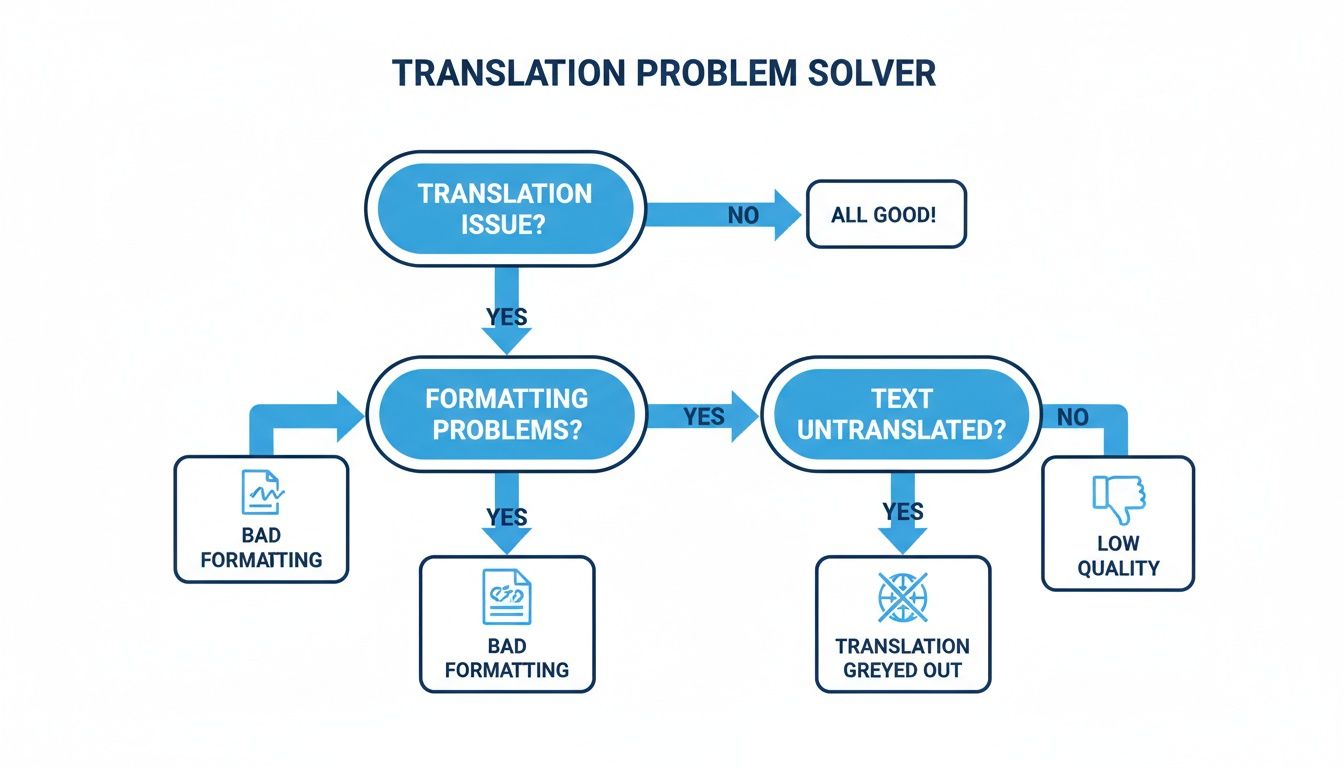
Each of these issues—from mangled formatting to just plain bad quality—is a clear signal that your document’s complexity has outgrown the capabilities of a general-purpose tool.
When Formatting and File Types Matter
Beyond the linguistic subtleties, you'll run into some hard technical limitations. Microsoft Word is fantastic for .docx files, but the publishing world—especially for eBooks—runs on formats like EPUB.
Trying to translate a Word document and then shoehorn it into a properly formatted EPUB is a recipe for disaster. You're almost guaranteed to face headaches like:
- Broken chapter breaks that ruin the reading experience.
- Inconsistent styling for headings, quotes, and paragraphs.
- Image placement errors that make visual layouts look chaotic.
- A lost table of contents, making the book impossible to navigate.
This is where specialized services become absolutely essential. A platform like BookTranslator.ai, for instance, is engineered specifically to handle EPUB files. It's built for one core purpose: translating entire books while perfectly preserving their intricate structure and formatting. It’s the logical next step when you’re moving from a casual document translation to a serious publishing project.
If you're weighing your options, exploring a guide on the best document translation software can give you a broader perspective on tools built for specific needs.
Ultimately, the translator in Microsoft Word is your go-to for speed and convenience. But when nuance, voice, and professional formatting are on the line, it’s time to graduate to a tool built for the job.
Common Questions About Translating in Word
Even with the best tools, you're bound to run into a few specific questions when translating documents in Microsoft Word. Let's tackle some of the most common ones I hear so you can handle your next project with confidence.
Can I Translate a Document If I'm Offline?
In short, no. Word's translation features are completely dependent on the cloud-based Microsoft Translator service.
To translate either a snippet of text or a full document, you need an active internet connection. If you're working offline, you'll notice the translate options are greyed out and you won't be able to click them.
Does Word Support Every Language?
Microsoft Translator boasts an impressive list of over 100 languages, which is fantastic for most business, school, and personal needs. It covers almost any major language you'd need to work with.
That said, it doesn't cover every language, especially certain regional dialects or less common languages. If you're about to start a critical project, it's always a smart move to double-check the official Microsoft Translator languages list to make sure your language pair is on there.
Is the Translation Quality Good Enough for Professional Documents?
This is the big question, and the answer is nuanced: it depends entirely on the context.
For internal communications, understanding the gist of an email from an international colleague, or creating a rough first draft, the quality is often perfectly fine. The AI behind it has gotten surprisingly good at direct, literal translations.
However, I would never recommend it for public-facing content. For things like legal documents, marketing materials, or creative works, it's simply not a replacement for a skilled human translator. The AI will almost certainly miss the cultural subtleties, idioms, and specific tone that give your writing its true meaning.
My Advice: Think of Word’s translator as a powerful assistant, not a final-stage professional. It's great for initial drafts and informal tasks. But for anything that represents your brand or requires absolute precision, hiring a professional is a non-negotiable investment.
Will Translating My Document Overwrite the Original File?
Nope, your original document is completely safe. When you use the "Translate Document" option, Word automatically creates a brand-new, separate file for the translated text.
It never touches or modifies your source document. This is a fantastic safety net, letting you experiment with different translations without ever worrying about losing your original work.
Ready to move beyond basic documents and translate an entire eBook with perfect formatting? BookTranslator.ai is designed for authors and readers who need flawless EPUB translations in just one click. Translate your first book today.