
Turning a webpage into an EPUB file is a straightforward way to create a personal, portable library of content you care about. It’s about more than just saving an article for later; it’s about transforming transient web content into a permanent, beautifully formatted ebook you can read on any device, anytime.
So, Why Bother Converting a Webpage to EPUB?
Bookmarking a page is easy, sure. But what happens when that page disappears, gets moved behind a paywall, or you’re stuck on a plane with no Wi-Fi? Converting that content to an EPUB puts you in control.
Think about it. You might be a researcher gathering critical articles for a project, and you can't risk those sources vanishing overnight. Or maybe you're just trying to read a long-form article without all the pop-up ads and auto-playing videos. This is exactly where an EPUB becomes your best friend.
A Far Better Reading Experience
Saving a webpage as a PDF is a common go-to, but it often creates a clunky, static file that’s a pain to read on a small screen. You’re constantly pinching and zooming, trying to navigate a layout designed for a desktop monitor.
An EPUB, on the other hand, is built for reading. The text and images are reflowable, meaning they automatically adjust to fit your screen perfectly, whether it’s a Kindle, a tablet, or your phone. The result is a clean, book-like experience without the clutter of the original website.
The real magic is turning temporary online content into a permanent, portable, and pleasant reading format. You're curating your own digital library, pulling the best pieces from across the web.
Future-Proof Your Digital Library
The internet is constantly shifting. A link that’s live today could be a 404 error tomorrow. By creating an EPUB, you’re archiving that content in a stable, open-source format that isn’t going anywhere. This personal archive becomes an invaluable resource over time.
This move toward portable digital formats is only getting bigger. The global ebook market is projected to hit $14.9 billion in 2025, and the number of readers is expected to cross 1.1 billion by 2029. You can dive deeper into these ebook statistics to see just how massive the trend is. This growth underscores why knowing how to convert web content into a reliable format like EPUB is more useful than ever.
Quick and Easy Ways to Turn a Webpage into an EPUB
Look, sometimes you just need a fast and dirty conversion. You've found a great article you want to read on your commute, and you don't want to mess around with complex software. For that, your best friends are browser extensions and online converters. They're designed for one thing: turning a webpage into an EPUB with minimal fuss.
The whole process is usually just a couple of clicks. With a browser extension, you just land on the page you want to save, hit the extension's icon in your toolbar, and you're pretty much done. Online converters are almost identical—you copy the URL, paste it into a box on their website, click a button, and a moment later, you've got a download link. This is all about speed and convenience.
Browser Extensions for Instant Conversions
Extensions feel like a built-in feature of your browser, which is what makes them so handy. Whether you're on Chrome, Firefox, or Safari, there are some great little tools that get the job done.
- DotEPUB: This one's a classic. It’s a simple, no-frills extension that adds a "convert" button right into your browser. It’s been around for a while because it just works.
- Push to Kindle: As the name suggests, it's built for sending articles to a Kindle, but it often kicks out a clean, well-formatted EPUB file that you can use on any e-reader.
These tools are brilliant when you're in a hurry. Just know that they can sometimes get tripped up by really complicated page layouts or websites loaded with interactive scripts, so you might see a few formatting hiccups in the final file.
Using Online Converter Websites
If you don't want to install anything, online converters are the way to go. Sites like Online-Convert, CloudConvert, or Convertio are dead simple. The best part? You can use them from literally anywhere—your laptop, your work computer, even your phone.
Deciding when to use these quick methods is pretty straightforward.
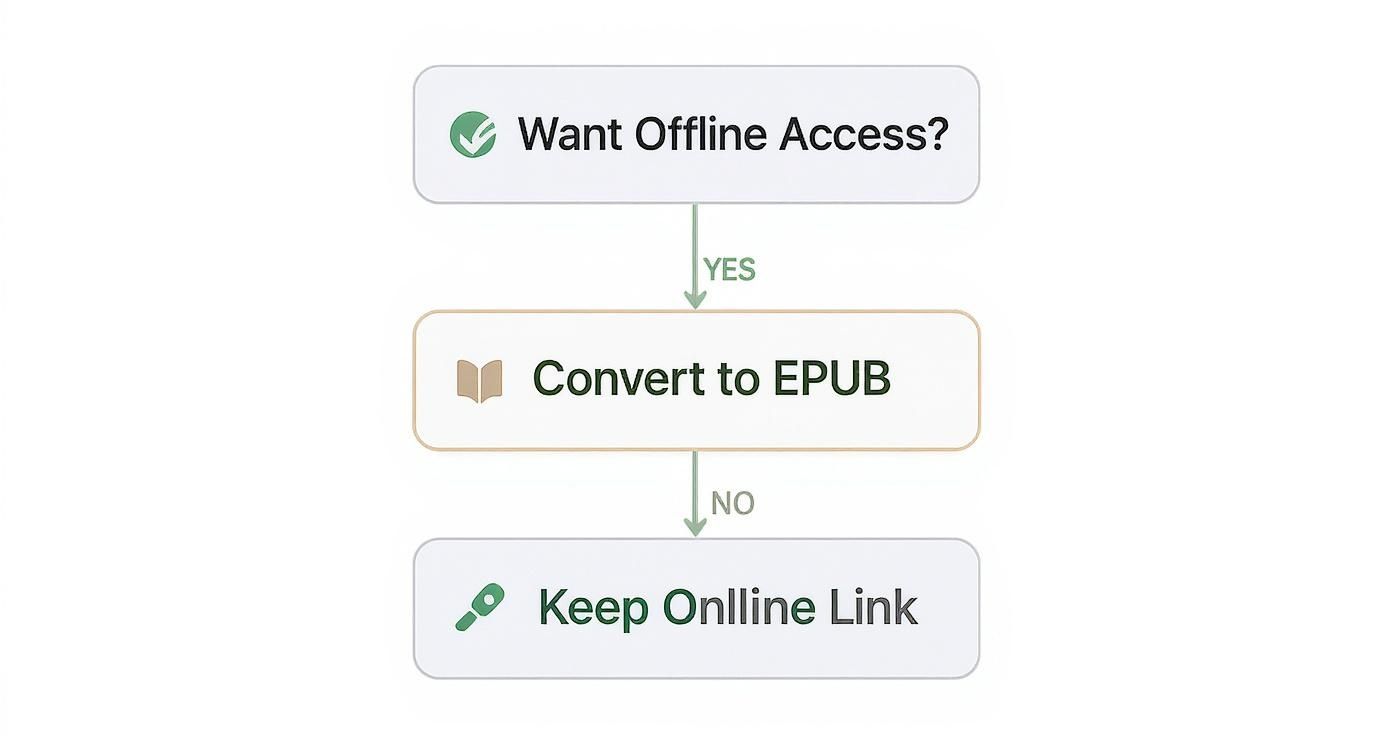
The logic here is solid: if you need guaranteed offline access, converting the content is always a safer bet than relying on a bookmark to a page that might change or disappear.
But there’s a catch. This convenience means you're handing a URL over to a third-party service, which might not be ideal if the content is private or sensitive. You also get zero control over the output. You can't tweak the metadata, clean up the CSS, or make any edits. It is what it is.
Comparing Easy Webpage to EPUB Converters
To help you choose, here's a quick rundown of these simple methods, highlighting where each one shines and where they fall short.
| Method | Best For | Pros | Cons |
|---|---|---|---|
| Browser Extensions | Saving single articles on the fly as you browse. | Integrated into the browser; extremely fast (1-2 clicks); no need to leave the page. | Can struggle with complex layouts; limited options; requires installation. |
| Online Converters | Quick conversions from any device without installing software. | Accessible from anywhere (PC, Mac, mobile); no installation needed; often supports more than just URLs. | Privacy concerns with third-party servers; very little to no customization; requires an internet connection to use. |
Ultimately, both are fantastic for what they are: quick, simple solutions for single-page conversions.
If your needs are more advanced, you might want to look at our guide covering the https://booktranslator.ai/blog/epub-converter-or-translator-top-tools-for-book-processing, which dives into more powerful tools. And remember, EPUB isn't the only option; there are also great tools for converting webpages to other formats like PNG if you just need a visual snapshot.
Using Calibre for Powerful Custom Conversions
When the quick-and-dirty methods just won't do, it's time to bring out the big guns: Calibre. This free, open-source software is the Swiss Army knife for anyone serious about ebooks. It's not just a converter; it's a full-blown library management tool that gives you incredible control over your webpage to epub projects. Yes, it requires a software install and a bit of a learning curve, but the professional-grade results are absolutely worth it.
Calibre really comes into its own when you're tackling something more complex than a single article. Think about compiling an entire blog series into one cohesive ebook, or archiving a detailed research site with all its images, links, and footnotes perfectly preserved. That's where Calibre moves beyond simple conversion and into true ebook crafting.
Fetch News for Automated Content Scraping
One of Calibre's killer features is a tool called "Fetch news." Don't let the name fool you—it's not just for newspapers. You can teach it to pull content from almost any website by creating a custom "recipe." A recipe is just a small script that tells Calibre exactly where to look for content on a site, how to grab it, and how to put it all together.
For instance, I have recipes set up for a few webcomics and tech blogs I follow. Once a week, I can tell Calibre to run them, and it automatically downloads all the new posts, packages them into a single, neat EPUB, and queues it up for my e-reader. It's a fantastic way to automate content collection.
Mastering Metadata for a Professional Finish
Nothing screams "sloppy conversion" like an EPUB with missing metadata. You know the type: a generic filename, "Unknown" in the author field, and no cover image. Calibre's conversion dialog lets you dial all this in before the file is even created.
You get total control over the essentials:
- Title and Author: Give your ebook a proper name so you can actually find it later.
- Cover Image: Slap on a custom cover. It makes a huge difference in your library view.
- Tags and Series Info: Organize your saved articles just like real books, which is perfect for keeping related content together.
This level of detail is what turns a random file into a polished, permanent part of your digital library.
Calibre gives you the power to not just save a webpage, but to remaster it. You're the editor, designer, and librarian, all in one.
Fine-Tuning Appearance with Conversion Settings
This is where you get to play art director. Calibre’s conversion settings are incredibly deep, letting you tweak everything from the page margins to the fonts.
Head over to the Look & Feel section. Here, you can add your own CSS to override the website’s original styles. If you hate the site's default font or find the line spacing too cramped for comfortable reading on an e-ink screen, you can fix it right here. This is how you ensure the final EPUB is perfectly optimized for your device and your eyes.
Another lifesaver is the Heuristic Processing feature. It's a smart tool that tries to automatically clean up messy code, strip out junk like website headers and footers, and fix common formatting glitches. Turning this on can save you a ton of manual cleanup, especially with older or poorly-coded sites.
Finally, the Table of Contents settings are non-negotiable for longer content. Calibre can build a fully navigable TOC from the heading tags (H1, H2, etc.) in the original article. For a multi-chapter piece, this is absolutely essential for usability. Getting these settings right is the key to producing a webpage to epub conversion that feels every bit as professional as a store-bought ebook.
The Manual Method: Building a Flawless EPUB from Scratch
For those who demand absolute perfection, automated tools can feel a bit... clumsy. When you need total control over every element—from the underlying code to the final metadata—the only way to go is manual. This approach isn't for the faint of heart, but it guarantees a professional, polished result that no one-click converter can ever match.
At its core, an EPUB file is surprisingly simple. Think of it as a tidy little ZIP archive containing HTML files for your content, CSS for the styling, and XML files that tell the e-reader how it's all structured. Understanding this is the key to building one yourself. Your mission is to recreate this structure using clean, optimized files pulled straight from the source webpage.
Gathering Your Raw Materials
First things first, you need to carefully extract the essential components from the webpage. This isn't a simple "save as" operation; it's more like a surgical procedure. You're isolating the core content and its styling while leaving behind all the digital clutter—ads, navigation bars, sidebars, and tracking scripts.
- Clean HTML: Use your browser's "View Page Source" or "Inspect" tool to zero in on the main article content. Copy that specific block of HTML and save it as its own
.htmlfile. - Essential CSS: Hunt down the stylesheets that control the article's typography, layout, and overall appearance. You'll need to save these
.cssfiles and make sure they're linked correctly in your HTML.
If you're getting serious about this, knowing a bit about web scraping can make the process much smoother. For those interested in the technical side, there are some great strategies for efficient web content extraction that dive into this.
From Code to EPUB with Command-Line Power
With your HTML and CSS files ready, you can bring in the heavy artillery: a command-line tool like Pandoc. It’s a universal document converter that works wonders, transforming nearly any markup format into another.
A basic Pandoc command to spin up an EPUB might look something like this:
pandoc my-article.html -o my-book.epub --css=style.css --metadata title="My Awesome Article"
This little line of text tells Pandoc to take your HTML, apply your custom stylesheet, add a title, and spit out a clean EPUB file. You can get much fancier by adding flags for the author, a cover image, and even generating a table of contents automatically from the heading tags in your HTML. It's incredibly powerful.
Fine-Tuning with a Dedicated EPUB Editor
While Pandoc gets you 90% of the way there, the final touches are best applied with a dedicated EPUB editor. This is where you crack open the EPUB package and manually tweak the files inside for a perfect finish.
Tools like Sigil are brilliant for this. It gives you a split view with a "what-you-see-is-what-you-get" (WYSIWYG) interface on one side and the direct code on the other, as you can see above. This setup is perfect for making precise adjustments to the HTML and CSS. You can easily fix formatting quirks, embed custom fonts, add a more detailed table of contents, and clean up any messy code that might have slipped through.
The manual process transforms you from a content consumer into a digital craftsman. You have the final say on every detail, ensuring the final product meets your exact standards.
This manual method gives you the power to create exactly the kind of EPUB you want. The choice often comes down to whether you need a dynamic, reflowable layout or a fixed one, a topic you can explore further in our detailed comparison of dynamic page flow vs. fixed-layout EPUBs. With this level of control, you can build either format with precision.
Polishing and Validating Your Final EPUB
Getting a raw file from a webpage to epub conversion is a solid first step, but the job isn't done yet. A freshly converted file often brings along digital clutter from the original website—things like broken image paths, wonky formatting, or junk code that can make it look terrible on different e-readers. This is where the real work begins, turning a functional file into a professional ebook.
The absolute first thing you must do is validate your EPUB. Just as websites have HTML standards, EPUBs have their own set of rules they must follow. An invalid file might look perfectly fine on your favorite app but completely fall apart on another.
I always recommend using an official tool like the EPUBCheck validator. It’s the industry standard for a reason. It scans your file and spits out a clear report of any errors, like missing files or non-standard code. This lets you fix the problems before your readers ever see them.
Running a Post-Conversion Quality Check
Once it passes validation, it’s time for a manual spot-check. No automated tool can catch everything, especially when it comes to readability and aesthetics. You need to open your EPUB on a few different devices or reader apps to see how it actually behaves in the wild.
I find it helps to use a simple checklist so nothing gets missed:
- Image Integrity: Are all the images showing up? Are they sized correctly, or are they gigantic and breaking the layout? Sometimes images just don't make the jump from the website.
- Link Functionality: Go through and click every single link. You're looking for broken URLs that were relative to the original website but now lead nowhere.
- Formatting Consistency: Keep an eye out for weird font sizes, awkward spacing, or stray website elements like navigation bars and footers that need to be removed.
This hands-on review is what ensures the reading experience feels smooth and professional, no matter what device your audience is using.
A validated and polished EPUB isn't just a file; it's a finished product. This final 10% of effort ensures 100% reader satisfaction and compatibility across the vast e-reader ecosystem.
Optimizing File Size for Performance
Nobody likes a bloated EPUB. They're slow to load, a hassle to download, and can even crash older devices. The culprits are almost always the same: huge, uncompressed images and leftover code.
Start with the images. Run them through an optimization tool to shrink their file size without making them look blurry. After that, if you’re comfortable digging into the code, hunt down and delete any inline styles or scripts that aren't doing anything useful. This kind of cleanup can shave megabytes off your file, making for a much leaner and faster ebook.
For those preparing content for a global audience, it’s also a good time to consider other factors. You can learn more about how to test EPUBs for multilingual accessibility to make sure your polished file works for everyone.
Navigating Common Webpage-to-EPUB Conversion Snags
When you start turning web content into EPUB files, you'll inevitably run into a few common roadblocks. Getting ahead of these issues can save you a lot of headaches and help you pick the right tool for the job.
Why Is My EPUB Missing Content?
One of the most frequent frustrations is ending up with an incomplete EPUB. You open the file, and half the article is just… gone.
The likely culprit is dynamic content. Modern websites often use JavaScript to load more of an article or its images as you scroll down the page. Simple converters and browser "Save As" functions often can't see this content; they only grab the HTML that's present when the page first loads.
If you hit this wall, you'll need a more robust solution. A powerful tool like Calibre is often smart enough to handle these scripts. If that still doesn't work, the manual HTML extraction method is your most reliable fallback, as you're capturing the page exactly as your browser sees it.
Will My Images Look Terrible?
Another big question revolves around image quality. Nobody wants a book filled with blurry, pixelated pictures.
The simple truth is that the quality of your EPUB's images depends entirely on the source. The conversion process can't invent detail that isn't there in the first place. If the website uses low-resolution images, that's what you'll get in your ebook.
To get the best possible results, keep these two things in mind:
- Source Quality is King: Always start with a webpage that has clear, high-quality images.
- Check Your Settings: More advanced tools, especially Calibre, often give you control over image processing. You can sometimes disable aggressive compression that might otherwise make your images look worse.
Just remember there's a trade-off. Using extremely high-resolution images can make your EPUB file huge, which might be an issue for older e-readers. It's all about finding the right balance.
How Do I Convert Content Behind a Paywall?
What about that fascinating article locked behind a subscriber login? This is where most automated tools fail spectacularly.
Online converters access the page from their own servers, not from your computer. They can't log in for you, so all they see is the paywall or login screen. Unsurprisingly, that's what they convert.
When dealing with paywalled or login-protected content, your only real option is to work from your authenticated browser session. This means you have to use a browser extension that can see what you see, or manually save the complete webpage HTML after you've already logged in.
This ensures the converter is working with the full article you have access to. Of course, always be sure to respect the website's terms of service and copyright when saving any content. Thinking through these common issues is the key to turning a webpage to epub successfully, creating a perfect, readable file for your personal library every time.
Ready to make your ebooks accessible to a global audience? BookTranslator.ai uses advanced AI to translate your EPUB files into over 50 languages while preserving the original layout and formatting. Get professional-quality translations with a simple, pay-per-book model. Translate your first book today.