
So, you have a scanned PDF and need it in another language. It sounds simple, but it’s a bit of a puzzle. A scanned PDF is really just a picture of a document. You can’t copy the text, you can’t edit it, and a standard translation tool has no idea what to do with it.
To get the job done right, you first need to turn that picture of words back into actual, editable text. That’s where Optical Character Recognition (OCR) comes in. An OCR tool scans the image, identifies the letters and words, and pulls them out into a format a computer can understand. Only then can you move on to the translation part.
The Modern Workflow for Scanned PDF Translation
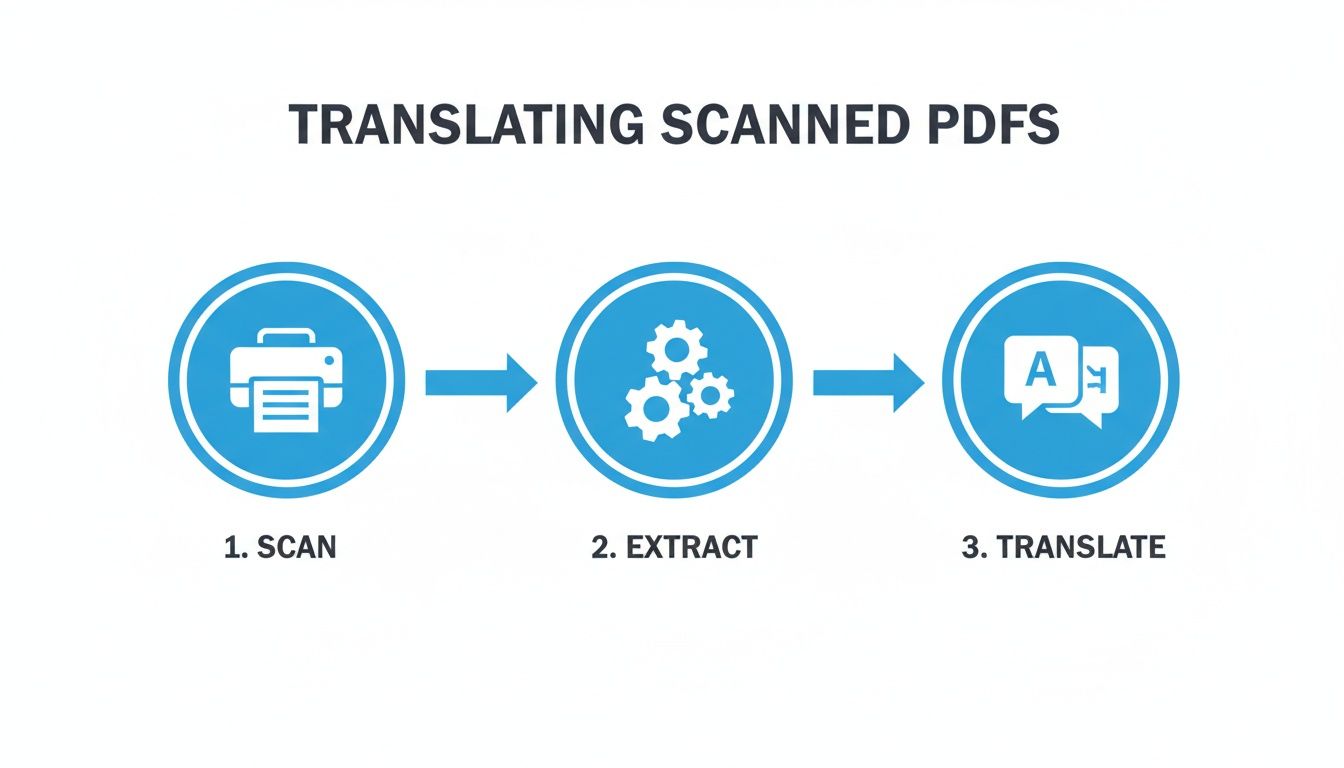
The image above really nails the core concept: capture the document, pull out its content, and then translate it. This isn't just about swapping languages; it's a fundamental transformation of the document from a static image into dynamic, multilingual text. It’s the only way to avoid the soul-crushing task of retyping everything by hand.
This entire process leans heavily on two specific technologies that work together:
- Optical Character Recognition (OCR): This is your starting point and the most critical step. OCR software meticulously analyzes the document's image, recognizing every character, word, and sentence, and then converts it all into machine-readable text.
- Machine Translation (MT): Once OCR has done the heavy lifting, a machine translation engine like DeepL or Google Translate can finally read the text and convert it into your target language.
This tech combo is a huge deal. The global demand for quick and accurate document processing is driving the language services market toward a projected USD 71.82 billion by 2025. As noted by Mordor Intelligence, specialized software is key to making these projects faster and more affordable.
Key Takeaway: You can't translate a language until you can read the text. For a scanned PDF, that means you absolutely must convert the format (image to text) before you can convert the language. Trying to translate an image directly is the number one reason these projects fail.
Overview of the Scanned PDF Translation Process
To give you a clear roadmap, the table below breaks down the journey from a scanned image to a fully translated document. Each stage has a specific goal and relies on particular tools to succeed.
| Stage | Primary Goal | Key Technologies and Tools |
|---|---|---|
| 1. Preparation & OCR | Convert the static PDF image into editable, machine-readable text. | High-resolution scanner, dedicated OCR software (e.g., Adobe Acrobat Pro, Nanonets), or all-in-one translation tools. |
| 2. Machine Translation | Translate the extracted text accurately into the target language. | Advanced Machine Translation (MT) engines (e.g., DeepL, Google Translate, modern MT platforms). |
| 3. Formatting & Review | Reconstruct the original layout, styling, and formatting in the translated document. | Document editors (e.g., Microsoft Word, Google Docs), Desktop Publishing (DTP) software, or integrated platform editors. |
Getting this workflow right ensures your final document is not only translated correctly but also looks professional and maintains its original structure.
Choosing the right file format after OCR is also a bigger deal than most people think. We've put together a detailed guide exploring why this matters so much, which you can read here: EPUB vs PDF for AI translation.
Now, let's dive into each part of this process with some practical advice to get you started.
Turning Scanned Images Into Editable Text with OCR
Before you can even think about translation, you have a critical first step: turning that scanned PDF into something a computer can actually read. Right now, your PDF is just a picture of a document. The text isn't text—it's just a collection of pixels shaped like letters. That's where Optical Character Recognition (OCR) comes in.
OCR technology is the magic that analyzes the image and converts those pixel patterns back into real, editable characters. The quality of this initial conversion sets the stage for everything that follows. If the OCR makes a mess of things, with jumbled words or misinterpreted letters, those errors get baked directly into your translation. Getting this right from the start is non-negotiable.
If you're curious about the nuts and bolts, this is a great breakdown of what Optical Character Recognition is and how it works.
Choosing Your OCR Tool
So, what should you use? The market has everything from quick-and-dirty free options to seriously powerful professional software. Your choice really boils down to the complexity of your document and how much accuracy you need.
For the Simple Stuff: Got a straightforward, single-column document that just needs a quick conversion? Google Drive's built-in OCR can actually get the job done. Just upload the PDF, right-click to "Open with Google Docs," and it will pull the text out. It’s fast and free, but don't expect it to handle complex layouts, tables, or columns with much grace.
For Serious Projects: When you're dealing with a technical manual, a detailed report, or anything with intricate formatting, you'll want to reach for a dedicated tool like Adobe Acrobat Pro. These programs are built for this. They excel at preserving layouts, recognizing tables, and delivering much higher accuracy across different languages. The time they save you in manual corrections is often worth the investment.
Think of it this way: a simple scanned letter is perfect for a free tool. A 200-page engineering manual with diagrams and charts? That's a job for professional software, no question.
Comparison of Popular OCR Tools for Scanned PDFs
To help you decide, here’s a quick comparison of some of the most common OCR solutions. Each has its strengths, so the "best" one really depends on what you're trying to accomplish.
| Tool | Best For | Key Feature | Price |
|---|---|---|---|
| Google Drive/Docs | Quick, simple, one-off documents | Free and built into the Google ecosystem | Free |
| Adobe Acrobat Pro | Professional-grade, complex layouts, high accuracy | Advanced text recognition and document editing | Subscription-based |
| ABBYY FineReader | High-volume, enterprise-level tasks | Industry-leading accuracy and language support | One-time purchase or subscription |
| Nanonets | Automated workflows and data extraction | AI-powered parsing for specific data points (e.g., invoices) | Tiered pricing based on volume |
Ultimately, professional tools give you more control and deliver a cleaner starting point for your translation, which means less cleanup work for you down the line.
Practical Tips for Improving OCR Accuracy
The software you choose is only half the battle. The quality of your original scan plays a huge role in the final result. A few minutes of prep work can make a world of difference.
First, check your scan resolution. 300 DPI (dots per inch) is the gold standard for OCR. Anything less, and the software will struggle to make out the characters, leading to a cascade of errors.
Pro Tip: Before you even hit the "scan" button, prep the physical document. Smooth out any creases, make sure the pages are straight, and use good, even lighting to eliminate shadows that can hide or distort the text. A clean scan is the foundation of an accurate conversion.
This is exactly why dedicated tools like Adobe Acrobat are so valuable. As you can see, they include features to enhance the scan before running the OCR, letting you fix skewed pages or poor contrast. This pre-processing step is a game-changer for imperfect source documents.
Handling Complex Layouts, Tables, and Images
Let's be honest: not every document is a simple wall of text. Manuals, academic papers, and newsletters are often filled with elements that can easily confuse OCR software.
Here’s how I typically handle these common obstacles:
- Tables: When an OCR tool butchers a table, spitting out a jumble of text, don't waste time trying to fix it. It's almost always faster to just extract the text and rebuild the table manually in your word processor.
- Images with Captions: The software might try to "read" text inside an image or get captions wrong. My workflow is to run the OCR on the main body text, then go back and manually place the images and their translated captions during the final formatting stage.
- Multi-Column Layouts: For things like magazines, check if your tool has a specific setting for recognizing columns. If it doesn't, you’ll likely have to copy and paste the text into the correct order yourself after the initial extraction.
The demand for this kind of work is exploding. The translation services market, which heavily depends on OCR and machine translation, was valued at USD 27.78 billion in 2025 and is projected to reach USD 34.24 billion by 2029. This growth is driven by the massive digitization of information—for example, the 220 million people who signed up for online courses by September 2023, many of whom need access to scanned materials in their native language.
Once you’ve successfully extracted clean, editable text, the next step is to get it ready for the translation engine. This often involves converting it into a structured format like EPUB. For a detailed guide on that part of the process, check out our article on the top tools for EPUB conversion and translation.
Choosing the Right Machine Translation Engine
Alright, your scanned PDF is now clean, editable text. The heavy lifting of OCR is done. Now comes the main event: the translation itself. It’s incredibly tempting to just copy-paste everything into the first free online tool you find, but hold on. This step is where a project succeeds or fails.
The machine translation (MT) engine you pick will have the single biggest impact on the final document's quality. They aren't all the same; each one is built on different neural networks and trained with different data. A thoughtful choice here can be the difference between a rough, awkward translation and a polished, professional document.
Comparing the Major Translation Players
The MT world is really dominated by a few big names, and each has its own personality. You're not looking for the "best" engine, but the best one for this specific job.
Here’s my take on the three giants you’ll likely be considering:
DeepL: This is my go-to for anything that needs to sound natural and fluent, especially with European languages. If you're translating a novel, marketing copy, or anything where the tone really matters, DeepL consistently produces translations that require less human editing.
Google Translate: Nobody beats Google when it comes to sheer language support. If you’re working with a less common language pair, this is your starting point, no question. The translations can sometimes feel a bit more literal than DeepL's, but its incredible accessibility and range make it an essential tool.
Microsoft Translator: A really solid and reliable choice, especially if you live inside the Microsoft Office ecosystem. It hits a nice sweet spot between broad language support and translation quality, making it a great all-rounder for business reports and technical guides.
Think about your document’s purpose. For a creative manuscript, I’d lean toward DeepL. For a technical manual in a niche language, Google Translate is the most logical first step.
The Impact of Context and Jargon
Machine translation has improved by leaps and bounds, but it can still get tripped up by context and industry-specific jargon. An engine might see the word "drive" and think of a car, when your entire document is about computer hardware.
Imagine trying to translate a legal contract. Words like "execute," "party," and "consideration" carry very specific legal meanings that a general-purpose tool is likely to miss. The same goes for medical charts, engineering specs, or financial statements.
Expert Insight: I can't stress this enough: use a glossary feature if it's available. This lets you create a master list of your key terms and define exactly how they should be translated every single time. It’s the best way to ensure consistency and prevent the machine from making embarrassing contextual mistakes.
If you need to translate a scanned PDF with specialized language, building a simple glossary is a must-do step for getting professional results.
Beyond the Free Web Interface
Those free web-based translators are fine for a quick sentence or two, but they’re not built for serious projects. Dedicated translation platforms and APIs give you far more control, better features, and, crucially, better security.
The interface above is a perfect example of a more robust tool designed to handle entire documents while trying to keep the original structure intact—something a simple text box can't do.
This kind of advanced capability is a direct result of the machine translation market exploding in recent years. It's on track to grow by an incredible USD 1.5 billion between 2024 and 2029. This growth is driven by a global need for localized content, with Europe alone making up 30% of that expansion. As detailed in this comprehensive market analysis, cloud-based solutions now make up 65% of the market, making powerful translation tools more accessible than ever.
Ultimately, picking your engine is a strategic move. Before you commit, ask yourself these questions:
- Language Pair: Is it a common one like English-to-Spanish, or something more obscure?
- Content Type: Is the tone creative, technical, or formal?
- Consistency: Is the document full of repeating terms that have to be translated the same way every time?
- Security: Are you working with sensitive information that shouldn't be uploaded to a public web server?
Answering these will point you straight to the right tool for the job, ensuring your translated PDF is accurate, readable, and ready for your audience.
Putting It All Back Together: Rebuilding Your Document
So, you've pulled the text out of the image and run it through a translation engine. The words are right, but the document itself is a disaster. It’s likely just a flat wall of text, completely stripped of the original layout that made it easy to read. This is a common sticking point, but it's entirely fixable.
An accurate translation is only half the job. If the final document doesn’t look professional or is impossible to navigate, its value drops to almost zero. This is the reconstruction phase, where you turn that raw, translated text back into a polished, usable file by reapplying the original formatting.
This means meticulously putting back all the headings, tables, bullet points, and images to match the source document. Skipping this step is a recipe for a confusing, unprofessional final product that undermines all the hard work you've already done.
The Old-Fashioned Way: Manual Reformatting
For many, the most direct route is to roll up your sleeves, open a word processor like Microsoft Word or Google Docs, and start rebuilding the document by hand. You'll have the original scanned PDF on one side of your screen and your translated text on the other, essentially playing a high-stakes matching game.
Here’s what your manual reformatting checklist usually looks like:
- Headings and Subheadings: Work through the document and reapply the heading styles (H1, H2, H3, etc.) to match the original's structure. This is critical for restoring the logical flow and making the content scannable.
- Lists and Bullet Points: Turn plain text lines back into properly formatted bulleted or numbered lists. It’s a simple change, but it makes a huge difference in readability, especially for instructions or summaries.
- Tables and Charts: This is almost always the most tedious part. You’ll probably have to create new tables from scratch and carefully copy and paste the translated data into the right cells.
- Images and Captions: Drop the original images back into their correct places in the document and then add the translated captions underneath them.
This hands-on approach gives you total control over the finished product, but you'll need patience and a good eye for detail. It's a rock-solid way to translate a scanned PDF when absolute precision is more important than speed.
A Smarter Way: Using Tools to Preserve Layout Automatically
Manually rebuilding a document gets the job done, but it’s not very efficient, especially when you’re dealing with long or visually complex files. Luckily, many modern translation platforms now have features specifically designed to preserve formatting for you. These tools are absolute game-changers for productivity.
They work by analyzing the document's structure during the OCR stage and then trying to reapply that same structure to the translated text. No system is perfect, of course, but the good ones can handle a huge amount of the grunt work for you.
A ProZ study found that an incredible 88% of full-time professional translators rely on at least one Computer-Assisted Translation (CAT) tool. This is why—they are essential for streamlining tedious tasks like formatting so translators can focus on the language itself.
A quality tool can intelligently put tables and multi-column layouts back together, saving you hours of manual labor. Even if the result isn't flawless, you're starting with something that's 80% of the way there instead of a blank page. This automation is a lifesaver for documents where layout is key, like brochures, technical manuals, and academic papers. If you want to find the right software, we put together a guide on some of the top tools for translation-friendly formatting.
Tackling Especially Tricky Layouts
Some documents are just plain difficult. Think of a magazine article with text wrapped around images or a financial report full of dense, intricate tables. Automated tools often struggle with these and can’t handle them alone. For these situations, a hybrid approach is your best bet.
Start by running the document through a translation tool to get as close as you can to the original layout. Then, open the translated file in an editor and manually fix what the machine got wrong. This might involve tweaking column widths, resizing images, or correcting a few awkward line breaks.
This mix of automation and manual cleanup strikes the perfect balance between speed and quality. It ensures your final document is not only accurate in its language but also faithful to the original design.
Expert Tips for Quality, Privacy, and File Management
Getting a decent translation is just one part of the puzzle. The real difference between an amateur job and a professional one lies in the details—the quality checks, privacy safeguards, and smart file handling that come next.
These final steps are what transform a raw, translated file into a polished, secure, and genuinely useful document. Let's walk through the pro-level techniques that make all the difference.
Quality Control Starts Before You Translate
Here’s a common mistake I see all the time: trusting the OCR output completely. Even the most advanced software isn't perfect and can easily misread characters, especially if the original scan isn't crystal clear. A lowercase 'l' might become a '1', or 'rn' could be misinterpreted as an 'm'.
These tiny errors slip right past machine translation engines, which then translate the gibberish literally. The result? Sentences that are confusing or just plain wrong.
The fix is simple: proofread the raw text before translation. Just give it a quick scan. You’re not looking for grammatical perfection, just obvious OCR blunders. Correcting a few character mistakes at this stage will save you from major headaches down the line and dramatically improve the final output when you translate a scanned PDF.
Protecting Your Data is Non-Negotiable
Ever wonder what happens to your document when you upload it to a free online translator? Many of their terms of service give them the right to store, analyze, or even use your data. For sensitive information, that's a huge risk.
Crucial Insight: Never upload confidential documents—like legal contracts, medical records, or internal business reports—to a public online translation tool. You risk exposing sensitive information and may even violate data protection regulations like GDPR.
If a document contains anything private, stick to secure, professional-grade software. Look for tools that offer end-to-end encryption and have a clear privacy policy that guarantees they won't store your data. For maximum security, offline OCR and translation apps are the gold standard, as your files never leave your computer.
When you're dealing with sensitive translated documents, it's also critical to know how to encrypt and securely share files to keep them protected after the fact.
Smart File Management for Sharing and Archiving
Okay, the translation is done and looks great. You’re almost there. The last piece is managing the final file so it’s easy to store, share, and actually use.
High-resolution scanned PDFs can be massive, making them a pain to email or upload. A good PDF compression tool can shrink the file size, often by over 70%, without any obvious drop in quality. It’s a quick step that makes a world of difference.
Finally, think about the person on the other end. A standard, image-based PDF isn't searchable. By running your final translated document through an OCR process one last time, you can create a searchable PDF. This adds a hidden text layer, allowing anyone to instantly find specific words or phrases.
Consider these final formats to match your audience's needs:
- Searchable PDF: The go-to for most corporate or academic documents. It keeps the original look and feel but adds powerful search functionality.
- EPUB: Perfect for longer content like books or manuals. This format reflows text to fit any screen, from a smartphone to a large monitor.
- Microsoft Word (.docx): The best choice for flexibility. It allows end-users to easily edit, copy, or repurpose the content themselves.
Frequently Asked Questions About Translating Scanned PDFs

Even after outlining the perfect workflow, translating a scanned document can still throw a few curveballs your way. Let's tackle some of the most common questions and roadblocks people hit when they need to translate a scanned PDF.
Can I Translate Handwritten Text in a Scanned PDF?
This is a really common question, but unfortunately, the answer is usually no—at least not automatically. While some high-end OCR systems are getting better at recognizing handwriting, the technology is still far from perfect. It especially struggles with messy cursive or varied handwriting styles.
If you're dealing with critical documents that have handwritten notes, the only truly reliable method is manual transcription. You'll need to type out those handwritten parts yourself and then feed that text into your translation workflow along with the rest of the OCR content.
What Is the Best Final File Format?
There's no single "best" format. The right choice comes down to what you—or your audience—plan to do with the translated document.
- Searchable PDF: Choose this if you need to keep the original look and feel of the document intact. It’s perfect for archiving official records, reports, and legal paperwork where visual integrity matters.
- Microsoft Word (.docx): This is your most flexible option. A Word doc is the way to go if the translated content needs to be edited, copied, or used in other materials.
- EPUB: If you're translating a book, manual, or any long-form content, EPUB is king. Its reflowable text adapts beautifully to any screen size, making it ideal for e-readers and mobile devices.
Why Did My Formatting Break During Translation?
Losing your document's formatting is probably one of the most maddening parts of this process. It happens because you're essentially chaining together multiple conversions: an image becomes raw text via OCR, and then a translation tool reassembles that text in a new language.
At each handoff, there's a risk of the original layout—columns, tables, and spacing—getting lost. While sophisticated document translation platforms are built to preserve this structure, a little manual cleanup is often unavoidable, especially with visually complex documents.
Key Insight: To give yourself the best shot at preserving formatting, start with a high-quality scan. I'm talking at least 300 DPI. A crisp, clean image doesn't just help the OCR read the words; it helps it understand the structure of the page.
Is It Safe to Use Free Online Tools?
For something quick and non-sensitive, a free online tool might seem tempting. But I'd strongly advise against it for anything important. When you upload a document to most free services, you often have no idea where your data is going or who might be looking at it. Many of these platforms reserve the right to store and use your data.
If your document contains any personal, financial, or confidential business information, you absolutely need a secure, professional tool. Look for services that offer end-to-end encryption and have a transparent data privacy policy. Peace of mind is worth the investment.
Ready to translate your books with professional quality while preserving every detail of your original layout? At BookTranslator.ai, we turn complex translation into a simple, one-click process. Get started today and bring your stories to a global audience. https://booktranslator.ai