
If you want to read your digital comics on just about any device out there, converting your CBR and CBZ files to EPUB is the way to go. This one move makes your collection universally compatible, letting you enjoy your comics on Kobo and Nook e-readers, tablets, and phones without a hitch. It also dramatically cleans up how you organize and manage your library.
Why Convert Your Digital Comics to EPUB
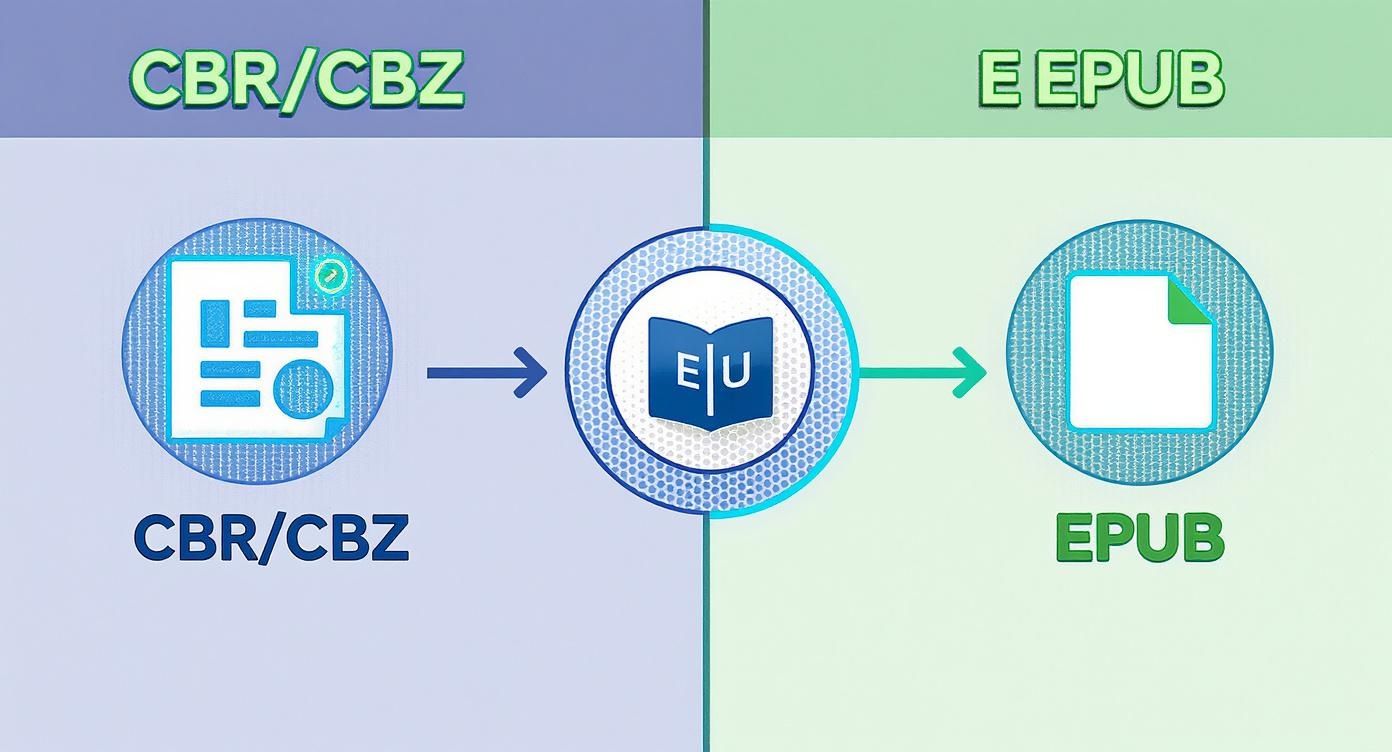
At the end of the day, turning CBR and CBZ files into EPUBs is all about freedom. CBR and CBZ files are really just simple archives—basically, zipped folders full of images. They're great for storage, but they often tie you to specific comic reader apps. If your favorite e-reader doesn't support them, you're out of luck. EPUB, on the other hand, is the industry standard for digital books.
This isn't a new problem. Back in the early 2000s, CBR and CBZ became the go-to formats for digital comic fans. But when the EPUB standard arrived in 2007 and e-readers took off, people wanted something that worked everywhere. As digital comic readership has exploded, millions have made the switch to EPUB, a format that now makes up roughly 80% of all eBook sales worldwide.
To see why this conversion is so popular, let's look at the key differences side-by-side.
CBR/CBZ vs EPUB At a Glance
This table breaks down the core distinctions between the comic archive formats and the universal EPUB standard.
| Feature | CBR/CBZ | EPUB |
|---|---|---|
| Primary Use | Comic book archiving | General-purpose e-books |
| File Structure | Compressed archive of images (JPEG/PNG) | HTML-based package with text, images, CSS |
| Compatibility | Limited to specific comic reader apps | Universally supported by e-readers, apps |
| Metadata | Limited; relies on filename | Rich, embedded metadata (title, author, series) |
| Layout | Fixed-layout; static images | Can be fixed-layout or reflowable |
| Accessibility | Poor; just images | Good; supports text-to-speech, etc. |
The takeaway is clear: while CBR/CBZ is a functional container for images, EPUB is a true e-book format designed for flexibility and organization.
Unlocking Universal Device Compatibility
The biggest win from converting to EPUB is breaking free from device-specific handcuffs. Ever tried to load a favorite graphic novel onto your Kobo, only to realize it won't open the CBR file? Converting it to EPUB solves that problem instantly.
- E-Ink Readers: Devices from Kobo, Barnes & Noble (Nook), and others read EPUBs natively. This gives you a fantastic reading experience without needing to hunt down a special app.
- Tablets and Phones: Sure, there are apps that open CBR/CBZ files. But using a standard EPUB lets you keep your entire library—comics and novels—in one place, like Apple Books or Google Play Books.
- Future-Proofing Your Library: Tech trends come and go, but open standards like EPUB have staying power. Converting your collection means you won't be scrambling if your go-to comic app disappears one day.
Gaining Superior Library Management
Beyond just reading, EPUBs give you powerful tools for organizing your collection, thanks to their fantastic metadata support. A folder of CBR files often depends on confusing filenames like Comic_Series_021_2023.cbz. EPUBs are far more sophisticated.
By embedding metadata directly into the file, you transform a simple collection of archives into a searchable, sortable, and beautifully presented digital library. It’s the difference between a shoebox of photos and a curated photo album.
With a properly tagged EPUB, you can embed key information like the series title, issue number, author, artist, and even a plot summary. When you drop these files into a library manager like Calibre or onto an e-reader, they get cataloged perfectly. No more manual sorting or trying to guess which issue comes next.
Improving the Overall Reading Experience
Converting to EPUB also puts you in the driver's seat when it comes to presentation. You can optimize images for your specific device, make sure double-page spreads display correctly, and add a clickable table of contents for easy navigation. This level of polish turns a basic set of images into a professional-quality digital book.
For those looking to go pro, this is also a crucial step if you want to create an ebook to sell and reach a wider audience. It makes the entire reading experience smoother, more immersive, and far more enjoyable.
Using Calibre for High-Quality Conversions
When you’re serious about converting your comics from CBR/CBZ to EPUB, Calibre is pretty much the gold standard. I’ve tried dozens of tools over the years, and nothing else offers the same level of control. It’s not just a file converter; it's an entire e-book management powerhouse that lets you craft a polished, professional-grade EPUB that looks perfect on your e-reader.
First things first, you need to get your comics into the program. Calibre’s interface is built around a central library, and adding books is a breeze. You can either drag your CBR and CBZ files right into the main window or just use the big "Add books" button. The software will chew through them pretty quickly and add them to your collection.
This process is about more than just changing a file extension. It's about taking a simple image archive and repackaging it into a structured format that any e-book reader can understand and display beautifully.
Perfecting Metadata Before You Convert
This is a step too many people skip, but it makes all the difference. Before you even touch the "Convert" button, spend a little time in Calibre's metadata editor. Trust me, a well-tagged library is so much easier to navigate than a folder full of cryptic filenames.
Just select a comic from your library and hit the 'E' key (or click "Edit metadata"). This is where you can catalog everything properly.
- Title and Series Info: This is crucial. Make sure the title is correct, then add the series name and issue number. This is what helps your e-reader group the issues of a series together in the right order.
- Author and Publisher: Adding the writer, artist, and publisher makes your collection searchable and feel complete.
- Cover Art: Calibre is great at fetching high-quality cover art automatically. If you don't like what it finds, you can easily upload your own file. A good cover makes browsing your library a much better experience.
Putting in a few minutes of work here will save you a ton of headaches later.
Mastering the Conversion Settings
Once your metadata is looking sharp, it's time for the main event. Select your comic and click the "Convert books" button. The first thing to check is in the top-right corner of the new window: make sure the output format is set to EPUB.
Now for the fun part. The real power is hidden in the settings panels on the left.
The whole point of a great conversion is to make the EPUB feel like it was made for your device. You want to dial in the page size, image quality, and reading direction to create a seamless experience, turning that archive of images into a proper digital comic.
The most important section for us is "Comic Input." This panel has options built specifically for what we're doing.
- Don't upscale images: Always leave this checked. Blowing up images just makes them look pixelated and increases the file size for no good reason.
- Don't sharpen images: I generally avoid this. Sharpening filters can give the art a harsh, overly digital look. It’s usually best to let the original art speak for itself.
- Trimming: If your scans have a lot of inconsistent white space around the edges, the trimming options here can help clean them up for a more uniform look.
Tailoring the Output for Your Device
After you've tweaked the comic input settings, head over to the "Page Setup" panel. This is where you tell Calibre what kind of screen you'll be reading on.
Under the "Output profile" dropdown, you'll find a massive list of devices, from generic profiles like "Generic e-ink HD" to specific models like the "Kobo Aura H2O" or "iPad." Picking the right profile ensures Calibre optimizes the image dimensions and aspect ratio for your screen. It’s the key to avoiding weirdly cropped or shrunken pages.
Finally, take a quick look at the "EPUB Output" settings. I always recommend checking "Preserve cover aspect ratio." It's a small detail, but it prevents that beautiful cover art you added from getting stretched or squished.
While Calibre is my go-to for this, it’s always smart to know what else is out there. It’s worth exploring the landscape of the best EPUB tools and converters to see how different programs approach the task.
Once you’ve got all your settings dialed in, just click "OK." Calibre will get to work and, in a few moments, you'll have a perfectly optimized EPUB file ready to go.
Exploring Online and Specialized Converters
While Calibre is a fantastic all-in-one library, it’s not the only way to convert your digital comics. Sometimes, you need a different approach. Maybe you just need a quick, one-off conversion without installing software, or you need a specialized tool to get your files looking perfect on a specific e-reader.
Looking at these alternatives ensures you always have the right converter for the job, whether you value speed, precision, or deep customization.
The Speed and Simplicity of Online Converters
Ever find yourself needing to convert just one CBR file and don't want to bother with a full software installation? This is where online converters are a lifesaver. You just upload your file, pick EPUB as the output, and download the result a few moments later.
Web-based tools like CloudConvert are perfect for this. The process is dead simple and incredibly fast, often finishing a conversion in less than a minute. There’s no software to manage and no complicated settings—just a direct path from your comic archive to a readable EPUB.
Of course, this convenience comes with a trade-off. Uploading files to a third-party server means giving up some privacy. While reputable services have solid security policies, it's something to keep in mind, especially with rare or sensitive files. Plus, most free online tools don't offer the batch processing or deep customization you get with desktop apps.
The demand for these services is massive. Platforms like CloudConvert, which launched back in 2012, now serve over 10 million registered users and are even ISO 27001 certified for data security. With an average conversion taking under 30 seconds for a 50MB file, it’s clear there's a huge need for accessible CBR CBZ to EPUB solutions. You can find more details about this trend directly on the growth of online file conversion on cloudconvert.com.
Kindle Comic Converter for E-Ink Optimization
If you read primarily on an e-ink device like a Kindle or Kobo, then Kindle Comic Converter (KCC) is an absolute game-changer. Don't let the name fool you; KCC is fantastic for creating EPUBs perfectly tailored for the unique properties of any e-ink screen.
KCC's real magic is its intelligent image processing. It can automatically:
- Split double-page spreads so they display correctly on a single screen.
- Adjust contrast and gamma to make artwork pop on a grayscale display.
- Resize images to the exact resolution of your e-reader, which shrinks the file size without sacrificing clarity.
This tool was built for one thing: making comics look amazing on e-readers. If you've ever been frustrated by EPUBs that look washed out or have tiny, unreadable text on your Kobo, running the source CBR through KCC first will almost certainly fix it. Beyond comic-specific tools, looking at general media file conversion guides can sometimes offer broader insights into the conversion process itself.
Sigil for Ultimate Manual Control
For the true power user who wants to control every single pixel and line of code, there’s Sigil. Unlike the other tools, Sigil isn't an automated converter—it’s a full-fledged EPUB editor. Think of it as a word processor built specifically for digging into the guts of an EPUB.
Sigil is for the tinkerer. It's where you go when you want to manually edit the underlying HTML and CSS of your EPUB, correct page order by hand, or build a custom table of contents from scratch.
You wouldn't use Sigil for a quick, one-and-done conversion. Instead, you’d use it to open an EPUB created by another tool (like Calibre) and make precise adjustments. For instance, you could use Sigil to fix a single misaligned image, edit the book's metadata directly in the code, or even embed custom fonts. It gives you complete control but definitely has a steeper learning curve.
Comparison of CBR to EPUB Conversion Tools
Choosing the right tool ultimately depends on what you need to accomplish. A quick online converter is great for a single file, while a dedicated app like KCC is essential for e-ink reading. This table breaks down the key differences to help you decide.
| Tool | Best For | Batch Conversion | Customization | Ease of Use |
|---|---|---|---|---|
| Calibre | All-around library management and flexible conversions | Yes | High | Moderate |
| Online Converters | Quick, single-file conversions without installation | No | Low | Very Easy |
| Kindle Comic Converter (KCC) | Optimizing comics for e-ink devices (Kindle, Kobo) | Yes | Medium | Easy |
Each tool has its place in a digital comic enthusiast's toolkit. To learn more about different options for handling digital books, you can explore our detailed breakdown of top tools for book processing. Comparing these helps clarify which one best fits your workflow, from quick online fixes to deep manual edits.
Fine-Tuning Your EPUBs for the Perfect Read
Getting a basic EPUB from a CBR or CBZ file is the first step, but crafting a truly seamless reading experience is where the real magic happens. This is how you take a functional comic archive and turn it into a polished, professional-grade e-book that looks fantastic on any screen. It all comes down to the details: image quality, file size, and how the pages flow.
These final touches are what make your digital library a joy to browse, not just a collection of files. Skip this part, and you could be stuck with enormous files that eat up your e-reader's storage or, even worse, those beautiful two-page spreads that end up squished and unreadable.
Nail Your Image Optimization and File Size
The art is the soul of any comic, which puts image optimization at the top of your to-do list. The goal here is to hit that sweet spot between crisp visuals and a manageable file size. No one wants to read a blurry comic, but a single 200MB file for one issue is just not practical, especially for devices with limited space.
This is where the image format you choose for your EPUB really counts. While JPEGs are the old standby, newer formats have them beat.
- JPEG: It's the classic for a reason. You get good compression, but it can sometimes leave behind fuzzy artifacts, especially around clean lines and text.
- PNG: This is a lossless format, so the quality is perfect. The trade-off is much larger file sizes, which usually makes it a poor choice for an entire comic book.
- WebP: A more modern format from Google. I’ve found that WebP consistently delivers 25-35% smaller file sizes than JPEG at the exact same visual quality, making it an excellent option for comics.
The right compression makes a huge difference. I've seen tools take a 180MB CBZ and shrink it to under 96MB using WebP, with absolutely no noticeable drop in quality. This is critical when devices like the Kobo Clara HD only have 8GB of storage and over 70% of digital comic fans read on EPUB-friendly devices.
Get Double-Page Spreads Right
One of the biggest headaches with converted comics is the double-page spread. In print, they're breathtaking. On a small e-reader screen, they can become a garbled, unreadable mess.
Properly handling double-page spreads isn't just a nice-to-have; it's essential. You want to see the full artwork as the artist intended, without having to awkwardly zoom and pan around.
Thankfully, good conversion tools like Calibre or Kindle Comic Converter have built-in features to solve this. You usually get a few choices:
- Split the spread: The software intelligently cuts the double-page image into two sequential pages. For portrait-mode e-ink screens, this is almost always the best bet.
- Rotate the page: If you're reading on a tablet, the tool can rotate the spread to display correctly when you turn your device to landscape mode.
- Leave it as is: Reading on a big monitor? You might just want to keep the original spread untouched.
The right setting really depends on your go-to reading device. If you want an EPUB that works well everywhere, splitting the pages is your safest option.
Final Polish: Page Order and Metadata
Once the technical tweaks are done, it's time for a final quality check. The most important thing is to confirm the page order. Every now and then, funky image filenames in the original CBR/CBZ can cause pages to get shuffled during conversion. A quick flip-through of your new EPUB will tell you if everything is in the right sequence.
This is also your last chance to get the metadata perfect. Make sure the series title, issue number, author, and cover art are all correct. A well-tagged EPUB is instantly recognized and sorted by your reading app, turning a messy folder of files into a beautifully organized library.
Finally, think about the layout. Most comics benefit from a fixed layout to keep the original page design intact. But it's good to know the alternatives. To dig deeper, take a look at our guide on dynamic page flow vs fixed-layout EPUBs to see how different EPUB structures can change the reading experience.
Troubleshooting Common Conversion Issues
Even when you do everything right, a cbr cbz to epub conversion can hit a snag. Maybe the pages are all mixed up, the artwork looks blurry, or the final file is just enormous. Don’t worry—these are common headaches, and thankfully, most of them have straightforward fixes.
Think of this section as your post-conversion checklist. Instead of re-doing the entire process from scratch, you can quickly diagnose the problem and fix what’s broken. It'll save you a ton of time and get you back to reading.
Fixing Out-of-Order Pages
It’s incredibly jarring when you’re reading along and suddenly realize you’ve jumped ahead three pages. This is probably the most frequent issue people run into, and it almost always points back to one thing: inconsistent image filenames inside the original archive.
Your conversion tool sorts the pages alphanumerically, relying on the image names (like Page_01.jpg, Page_02.jpg). The problem starts when the numbering isn't padded correctly. For instance, a system might read Page_10.jpg as coming before Page_9.jpg. It's a classic sorting quirk.
The best fix is to get ahead of the problem. Before you even start converting, extract the CBR/CBZ archive. Then, use a bulk renaming tool to pad the filenames with leading zeros (e.g.,
001,002...010,011). Re-zip the files, and you've created a perfectly logical order that any converter will understand.
Improving Blurry or Poor-Quality Images
Did your finished EPUB come out looking pixelated and washed out? The culprit is almost certainly over-aggressive image compression. To keep file sizes down, many converters default to settings that really degrade image quality. This becomes painfully obvious when you view the comic on a high-resolution tablet.
The solution lies in your conversion tool's settings. Dig around for anything related to image quality, compression, or output format.
- Boost JPEG Quality: If your tool uses JPEG, crank the quality setting up to 90% or higher.
- Switch Formats: See if you can convert the images to WebP. It often delivers better quality at a smaller file size compared to JPEG.
- Disable Extra Processing: Turn off any "sharpen" or "color correction" filters. Sometimes these automated "enhancements" just make the original art look worse.
A few quick tweaks here can make a world of difference, preserving the sharp lines and rich colors of the original artwork.
Dealing With Corrupted Files and Missing Metadata
Sometimes a conversion just fails completely, or it spits out an EPUB that’s missing all its metadata. A corrupted source file is a common cause. If your CBR or CBZ got mangled during a download, the converter won't be able to read it properly.
As a quick test, try opening the original archive with a program like 7-Zip or WinRAR. If you get an error message, the file is damaged, and you’ll need to find a new copy.
What if the file converts but has no title, series, or issue number? That just means the information wasn't in the filename or embedded in the original archive. The only way forward is to add it manually after the conversion using a tool like Calibre's metadata editor. A few minutes spent tagging your files will make your digital library so much easier to navigate.
Got Questions About Comic Conversion? We've Got Answers
Diving into file conversions can feel a bit like navigating a minefield. You've got questions about everything from legal stuff to whether you're accidentally ruining your favorite comic's artwork. It's smart to get the facts straight before you start tinkering with your whole collection.
Let's clear up some of the most common questions people have when turning their CBR and CBZ files into EPUBs. Knowing this stuff will help you convert with confidence, stay on the right side of the law, and get a great-looking digital comic in the end.
Is It Legal to Convert CBR and CBZ Files to EPUB?
This is the big one, and the short answer is: yes, for personal use. Think of it like ripping a CD you bought to listen to on your phone. You own the content, and you're just changing its format to use on a different device you own. This is often covered by "format shifting" or "space shifting" rights in many places.
The key word here is personal. The moment you share or upload that converted EPUB file, you're crossing the line into copyright infringement. So, as long as you legally own the original comic and are just creating a copy for your own library, you're generally in the clear.
Will Converting from CBR to EPUB Ruin the Image Quality?
Not if you do it right. It's a common fear, but the quality of your finished EPUB is completely up to you. A CBR or CBZ file is essentially just a simple archive—like a ZIP file—filled with images (usually JPEGs or PNGs). The conversion process just takes those images and repackages them into an EPUB structure.
A good conversion should have zero noticeable loss in quality. If the images look worse, it's almost always because of the compression settings you chose, not the process itself.
Tools like Calibre give you full control over this. If you want the art to stay razor-sharp, just make sure you set the image compression to a high-quality setting, like 90% or higher for JPEGs, or even a lossless option if you're not worried about file size. The only way you'll see a big drop in quality is if you deliberately crank down the compression to make the file smaller.
Can I Convert My Comics Back from EPUB to CBZ?
Absolutely. The process is completely reversible. Since a comic EPUB is really just a fancy package of images and a little bit of code, you can easily pull the original artwork back out.
You could use a program like Calibre to handle the EPUB-to-CBZ conversion automatically. Or, if you want to do it yourself, it's pretty simple. An EPUB is just a ZIP archive with a different file extension. Just rename your file from .epub to .zip, unzip it, and you'll find all the original image files inside. From there, you can just re-zip those images and rename the new archive to .cbz.
At BookTranslator.ai, we get how important it is to keep the original layout and quality of your documents intact. If you need to translate your EPUBs into more than 50 languages while preserving every heading, chapter, and style, give our AI-powered service a try. Head over to https://booktranslator.ai to see how it works.